Wednesday, August 16, 2017

Display methods in D365 Finance Forms SSRS reports

Display method in Forms
---------------------------------------------------
In AX7 we don’t have the option to create methods on table extension, so we should use the extension class to do that. The example below will show how to create a display method on the table extension class and use on a form extension.
First create your table extension class and your display method following the example below:
1
2
3
4
5
6
7
8
9
public static class MyCustTable_Extension
{
    [SysClientCacheDataMethodAttribute(true)] //This attribute will cache your display method.
    public static display Name myDisplayName(CustTable _this)
    {
        return _this.nameAlias() + "myDisplayName"; //Do here your display method as usual.
    }
 
}
To use your display method on the form, create your new field on the form extension and use the property as below:
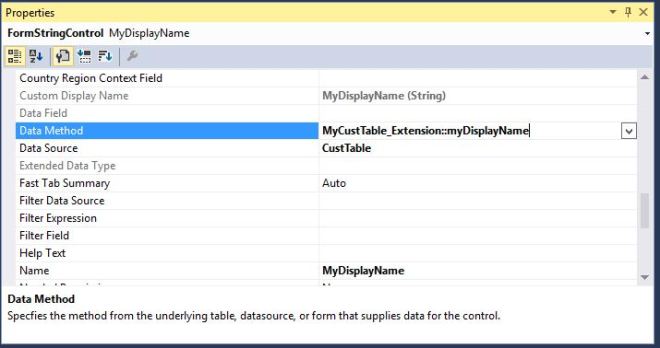
Capture
To cache your display method on the form set on the field the property “Cache Data Method” = yes if you don’t want to use the Attribute above.
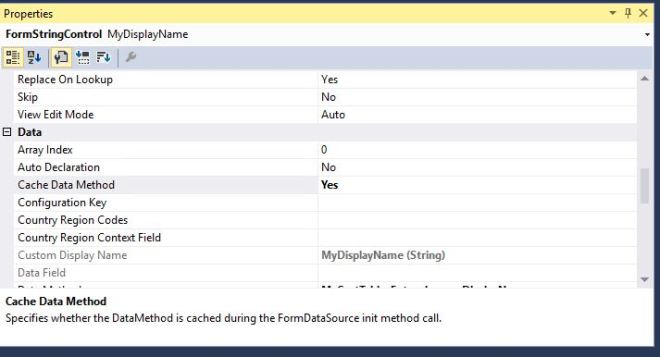
Capture2

Display method in SSRS reports
------------------------------------------------------

f you are developing report based on query rather on based on RDP, you may want to make use of some display methods, but those may not work. “Not work” means no error in compilation or build, everything great but you may not see any results while you run the report. The returned data can be empty.

If so is the case, I would recommend to create a View and write display methods on the view. Now the display methods which are coming from View, will show you results properly. 


For more details please see below URL's.

https://shyamkannadasan.blogspot.com/2017/07/display-methods-on-ssrs-report-d365o-ax.html

https://community.dynamics.com/365/financeandoperations/b/microsoftdynamicsaxextensions/posts/display-methods-on-ssrs-report-in-msdyn365fo


Tuesday, August 15, 2017

How to disable a form control in AX 365

// <summary>
/// Created by Rahul - 08/15/2017 for disabling LogisticsPostalAddress_Street control
/// </summary>
class LogisticsPostalAddress_EventHandler
{
    /// <summary>
    /// We are disabling LogisticsPostalAddress_Street control here
    /// </summary>
    /// <param name="args"></param>
    [PostHandlerFor(formStr(LogisticsPostalAddress), formMethodStr(LogisticsPostalAddress, updateControls))]
    public static void LogisticsPostalAddress_Post_updateControls(XppPrePostArgs args)
    {
        FormRun sender = Args.getThis();
        sender.control(sender.controlId(formControlStr(LogisticsPostalAddress, LogisticsPostalAddress_Street ))).allowEdit (false);
    }

}

Or second way

[FormControlEventHandler(formControlStr(SalesTable, ButtonLineInventory), FormControlEventType::Clicked)]
    public static void ButtonLineInventory_OnClicked(FormControl sender, FormControlEventArgs e)
    {
        FormDataSource      salesLine_ds  = sender.formRun().dataSource("salesLine"); //DataSource form CustTable
        FormRun             element       = sender.formRun(); //form element
        FormControl         buttonLineInventReservation   = element.design(0).controlName("buttonLineInventReservation"); //New button on the form

        buttonLineInventReservation.enabled(false);
    }


Please refer below post also.
https://rahulmsdax.blogspot.com/2018/08/how-to-hide-form-control-in-ax-365.html

Friday, June 9, 2017

Account for transaction type Depreciation, value model XXXX, does not exist for fixed asset ######.

Reason : Main account and offset account is missing for depreciation in posting profiles

Solution :

Go to fixed asset posting profiles -> Filter ledger account by "Depreciation"

Add posting profiles for your fixed asset group


Tuesday, April 18, 2017

Recent versions of Dynamics 365 for Operations

ReleaseVersionBuild numberAvailabilitySupport end dateTo learn more
Microsoft Dynamics 365 for Operations platformPlatform update 57.0.4475.16165March 2017March 31, 2018
Microsoft Dynamics 365 for Operations platformPlatform update 47.0.4425.16161February 2017February 28, 2018
Microsoft Dynamics 365 for Operations1611 7.1.1541.3036November 2016November 30, 2019What’s new or changed in Dynamics 365 for Operations version 1611 (November 2016)
Microsoft Dynamics 365 for Operations platformPlatform update 3 7.0.4307.16141November 2016November 30, 2017What’s new or changed in Dynamics 365 for Operations platform update 3 (November 2016)
Microsoft Dynamics AX platformPlatform update 27.0.4230.16130August 2016August 31, 2017What’s new or changed in Dynamics AX platform update 2 (August 2016)
Microsoft Dynamics AX platformPlatform update 17.0.4127.16103May 2016May 31, 2017What’s new or changed in Dynamics AX platform update 1 (May 2016)
Microsoft Dynamics AX application7.0.17.0.1265.23014May 2016June 30, 2017What’s new or changed in Dynamics AX application version 7.0.1 (May 2016)
Microsoft Dynamics AX platform7.07.0.4030.16079February 2016January 31, 2017What’s new or changed in Dynamics AX 7.0 (February 2016)
Microsoft Dynamics AX application7.07.0.1265.3015February 2016June 30, 2017What’s new or changed in Dynamics AX 7.0 (February 2016)

Support matrix

The following table provides information about the multiple releases of Microsoft Dynamics 365 for Operations platform and Dynamics 365 for Operations application, and which versions are supported.
Microsoft Dynamics AX 7.0 Microsoft Dynamics AX application 7.0.1Microsoft Dynamics 365 for Operations (1611)
Platform update 5CompatibleCompatibleCompatible
Platform update 4CompatibleCompatibleCompatible
Platform update 3CompatibleCompatibleCompatible
Platform update 2CompatibleCompatible
Platform update 1CompatibleCompatible
Platform 7.0Compatible

Update policy

Microsoft Dynamics 365 for Operations is serviced as a cloud offering. Updates to the Dynamics 365 for Operations platform and application will be handled in the following manner:
  • Dynamics 365 for Operations cloud platform updates will be initiated by Microsoft. After you provide your consent, platform updates will be rolled out to provide critical updates and features to the Dynamics 365 for Operations cloud platform.
  • Dynamics 365 for Operations application updates will be initiated by you, the customer. After you provide your consent, application updates will be applied to your production environment.
Application and platform updates will be scheduled with you, the customer. When platform and application updates are released, a sandbox environment will be made available to you, so that you can validate the updates. For details about how the sandbox environment will be provided, see the licensing guide.
Important: Some updates may be mandatory and require no consent. To help protect our customers and the service, Microsoft may apply critical updates directly to your Dynamics 365 for Operations production environment. If a critical issue is discovered, the following events will occur:
  • Microsoft will notify you about the critical update.
  • Microsoft will notify you of the required downtime window (if any) and apply the critical update to your Dynamics 365 for Operations production environment.
Dynamics 365 for Operations is supported according to the Microsoft Modern Lifecycle policy, which provides consistent and predictable guidelines for product support availability.
Original Post : https://ax.help.dynamics.com/en/wiki/manage-microsoft-dynamics-ax-online-updates/

Wednesday, April 5, 2017

Chnage Session date in Microsoft Dynamics AX 7/365

Accountants would like to easy enter corrections at a month end date. For this reason in previous versions of Microsoft Dynamics AX there was an option in the Tools menu to change the session date and time. However this menu is not implemented in the new cloud based Dynamics AX, the option to change the current work date is still available. The option is even closer than you might think.

Session date

When you need to process a lot of transactions on a certain date, you can select another date to be defaulted on e.g. general journal lines. This might be a month end date, but also any other date. In the new Microsoft Dynamics AX you can access this option in two ways:
  • Date selection on dashboard Calendar control.
  • Date/time selection in the Session date and time form.

Calendar control

When Dynamics AX is opened, you will find a calendar control on the left. At startup is will be defaulted with the system date.
Session date
You can just select another date on this control to change the session date. A confirmation will be prompted to the user.
Session date
When the session date is changed, the current date and the session date both are highlighted on this calendar control.
Session date
To take advantage of this you can create e.g. a new general journal and edit the lines. You will notice that the session date will be used as default for the new journal lines.
Session date

Session date and time form

You can also change the session date by using the form Session date and time. This can be required if you also need to change the session time. Another (temporary) reason can be found at the end of this document. To open the form, click Menu > Common > Common > Session date and time.
Session date
You can then change the session date and or time. To confirm this action you must click the OK button at the bottom of this slider form.
Session date

There is more…

Currently in the Technical preview (CTP8) there is an issue when you want to select a date in another year.
Session date
So when you want to select e.g. December 31, 2015 while the computer date is in 2016, the wrong date is compiled to be your session date. The month and date is correct, but it is taken the current year (2016). So please check the proposed date carefully before accepting a wrong one.
Session date
Changing the date using the Session date and time form to another year is working, so there is a workaround for this issue. I have created Connect feedback to have Microsoft aware of this.
@Actual post : https://kaya-consulting.com/session-date-in-microsoft-dynamics-ax/

Monday, March 13, 2017

Adding Validation to RDP Data Contracts - AX 2012

For RDP data contracts, implement the validate method and return True or False to indicate whether the parameter is valid. It is required to attach the DataContractAttribute attribute. The SysOperationContractProcessingAttribute attribute is optional. Attach the SysOperationContractProcessingAttribute attribute to use a custom UI builder with the contract class. Otherwise, the framework UI builder will be used to render the UI for dealing with the parameters when the report is run. To report a validation error, use the error method and write to the infolog. The error messages in the infolog will be marshaled from the service to the client and then rendered. Do not throw an error.

To add validation to an RDP data contract

  1. In the Microsoft Dynamics AX Development Workspace, open the AOT. Right-click the Classes node and then click New Class.
  2. Double-click the new class to open the classDeclaration in Code Editor.
  3. An RDP data contract must implement the SysOperationValidatable interface. The naming convention is [ReportName]Contract. The following code example illustrates the classDeclaration of the AssetDueReplacementContract data contract class that is used for the asset due replacement report.
    /// <summary>
    /// The <c>AssetDueReplacementContract</c> class is used as the data contract for the <c>AssetDueReplacement</c> SSRS report.
    /// </summary>
    [
        DataContractAttribute,
        SysOperationContractProcessingAttribute(classStr(AssetDueReplacementUIBuilder))
    ]
    public class AssetDueReplacementContract implements SysOperationValidatable
    {
        CurrentOperationsTax postingLayer;
        AssetReplacementDate dateFrom;
        AssetReplacementDate dateTo;
        Name dimension;
        NoYes includeSubTotal;
    }
    
    
  4. In the AOT, right-click the new class you created, point to New, and then click Method.
  5. In the Code Editor, provide validation logic for the parameters. The following example illustrates the validation logic for the AssetDueReplacementContract data contract class parameters.
    /// Determines whether the parameters are valid.
    /// </summary>
    /// <returns>
    /// true when the parameters are valid; otherwise, false.
    /// </returns>
    public boolean validate()
    {
        boolean isValid = true;
        if (!dateFrom)
        {
            isValid = checkFailed(strFmt("@SYS84753", "@SYS180311"));
        }
        if (!dateTo)
        {
            isValid = checkFailed(strFmt("@SYS84753", "@SYS180217"));
        }
        if (dateFrom > dateTo)
        {
            isValid = checkFailed(strFmt("@SYS300457", date2StrUsr(dateFrom, DateFlags::FormatAll), date2StrUsr(dateTo, DateFlags::FormatAll)));
        }
        return isValid;
    }

What is the primary purpose of using a Solution in Microsoft Power Platform & ALM?

As organizations embrace low-code development with Microsoft Power Platform , it becomes essential to manage and govern apps, flows, and dat...