Showing posts with label AX 7.0 Security. Show all posts

Friday, December 14, 2018

Security Development Tool in AX 7 / Dynamics 365 F&O

The Security Development Tool is a feature developed initially for AX 2012 that helps to more easily create and maintain security artifacts such as roles, duties, and privileges. Technically this is still a beta tool offered by Microsoft through Life Cycle Services which provides the following features:
  1. Displays entry point permissions for a given role, duty, or privilege
  2. Provides the ability to record business process flows and identify the entry points that are used
  3. Allows for testing a newly created or modified security role, duty, or privilege without having to use a test user account

It is an extremely helpful tool that Security Administrators of AX can use during the development of user security. In Dynamics for 365 Enterprise though, the Security Development Tool doesn’t exist as a separate application but instead its features are implemented directly in the application itself.
Here’s a breakdown of where the features of the Security Development Tool now live in Dynamics 365 Enterprise:
  • Full hierarchy view of role, duty, privilege, entry point security assignments
    • On the System Administration -> Security Configuration page if you select a role and choose View Permissions
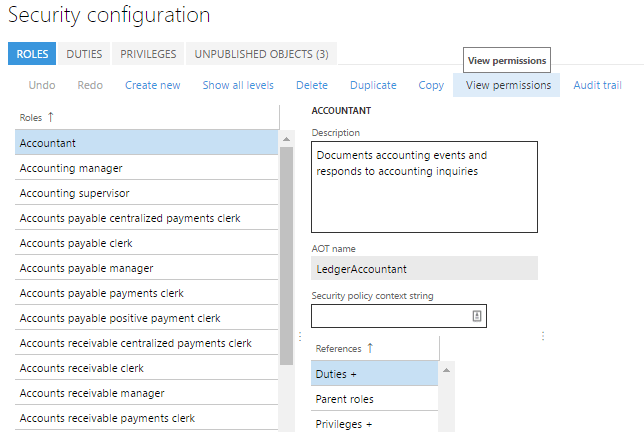
    • You will then be presented with a report that shows an overview of the role, duty, privilege, and entry point assignment 
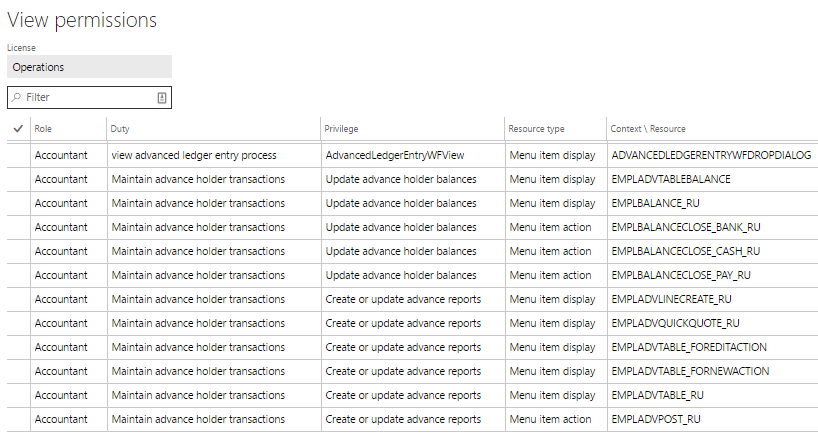
    • You can also follow this process to get the same information at a duty and privilege level
  • Breakdown of the roles, duties, and privileges that have access a particular page/form in Dynamics 365 Enterprise
    • On a particular record or form go to Options -> In the Page Options section -> Select Security Diagnostics
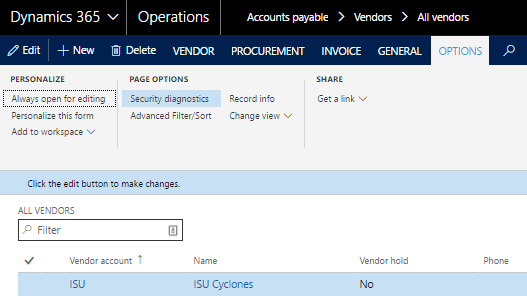
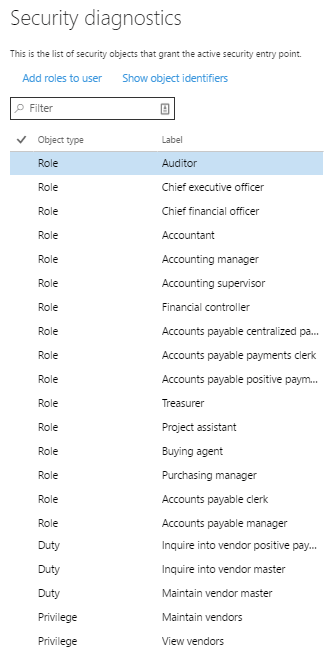
    • A Security Diagnostics window will open and show the roles, duties, and privileges that have access to this page/form
  • Record a task/process
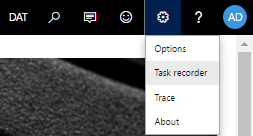
    • To start recording a process go to gear in the menu bar and click on Task Recorder
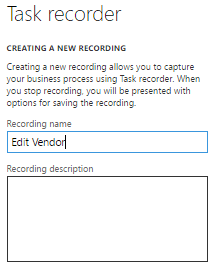
    • Give the recording a name and description
    • Navigate the steps required to complete the task, each step will be recorded in the right hand pane
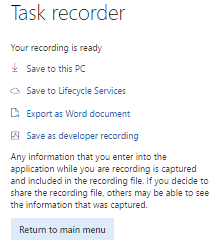
    • When you are done, click the Stop button in the top menu bar and you will be presented with options to save the task steps in a number of ways
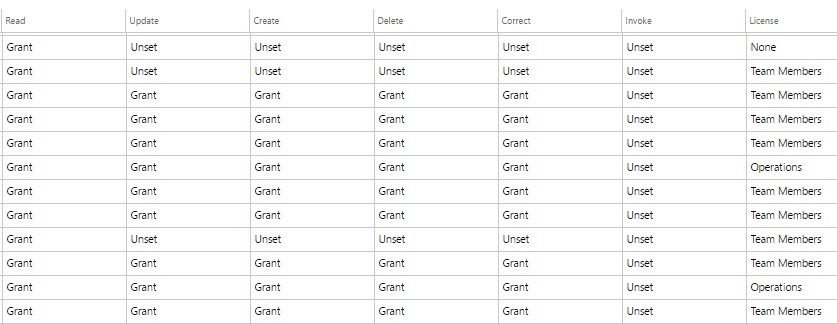
To help with the process of figuring out which menu items are used during the task, I have created a tool to help parse out a Developer’s Recording, it is available on my GitHub and a screenshot is below.
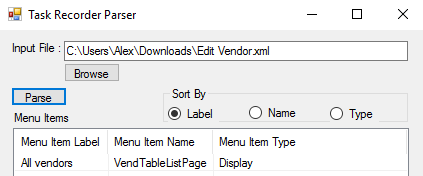
UPDATE:
Dynamics 365 Enterprise has now added an easy way to parse the task recordings to get the menu item data from it. In the system administration module, under the Security heading you will find an entry for ‘Security diagnostics for task recordings’.
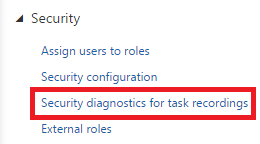
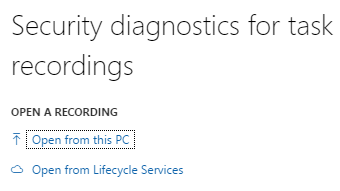
If you click on that you will be presented with a couple options, with the Open from this PC option you can upload previously downloaded task recording XML files, you can also open any saved task recording from LCS.
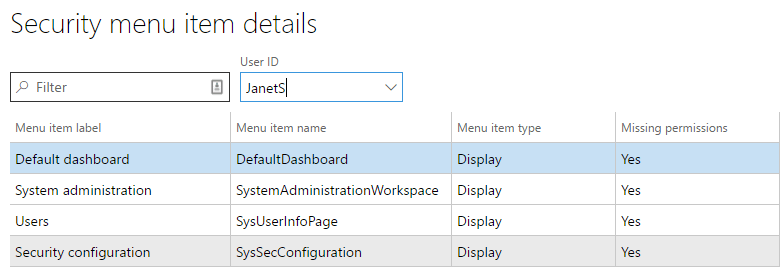
Once the file is processed, you will be presented with a screen with very similar output from the utility I wrote. It will show you the label name, AOT name, and type of each menu item found in the task recording. One really cool feature, is that you can select a user from the User ID drop down and the system will tell you whether that user currently has the necessary permissions. In the example below, you can see that this user is missing the necessary permissions to perform this process.
Create Security Roles in AX 7 / Dynamics 365 Finance and Operations

Dynamics 365 continues to use user role based security, similar to that in Dynamics AX 2012, which follows the basis that permissions are not granted to the user, but to the security roles assigned to a given user.
Without a role or roles, a user will not be able to access or use Dynamics 365. Roles are built upon duties and privileges which determine the business process and access level for a given role, respectively.  Below is a diagram of the connection between the different elements to role-based security.
While the functionality remains the same, there are two new features that make the process easier to understand and create the various parts of the security architecture – the security diagnostic and security configuration tools. These tools have been extremely helpful while configuring custom security roles on a recent Dynamics 365 project.

Security Diagnostic Tool

In previous versions of Dynamics AX, a project team would need to install the Security Development Toolset in an environment to more easily determine the roles, duties and privileges needed to complete a given task. Now, in Dynamics 365, users with a security administrator or system administrator role are able to run the Security Diagnostic Tool on any form to find out the roles, duties and privileges necessary to complete a task. Personally, I have used the Security Diagnostic Tool as my starting point for building out custom roles within Dynamics.
To access the Security Diagnostic Tool a user can select Option tab > Page Options > Security Diagnostics on any form and it will run automatically.
 
Once run, the tool will list all the roles, duties and privileges associated with that form. Users are also able to select Object Identifiers to expose the AOT tables/field names associated with the object.
Alternatively, if you would like to run the Security Diagnostic Tool for an end to end process, you can use the Security Diagnostics to Task Recordings Functionality. Users can access this through System Administration > Security > Security diagnostics for task recordings. Once selected, you will be prompted to open the task recording from PC or Lifecycle Services.
Once uploaded, the all menu item access in the task recording will populate. You can then select a user from the User ID dropdown to see whether or not they currently have permissions to access those menu items.
The one downfall of the Security Diagnostic toolset is that you are unable to see which role is associated with the desired duties/privileges. Once I have identified the desired duty/privilege, I will go into the second new toolset, the Security Configuration tool, to find out which roles currently have them.

Security Configuration Tool

In previous versions of Dynamics AX, the Security Development Tool, as well as the Security Roles form, were used to test and explore roles, duties and privileges. These tools have been replaced with a single tool, the Security Configuration tool, which allows users to explore security roles and allows for security roles to be created and modified within the user interface.
This toolset is extremely users friendly and intuitive; however, it must be mentioned that if changes are made within the user interface, they are not done in the AOT. This means that these changes are not permanent and can be removed via the user interface and/or an environment refresh. Instead, changes are saved as a data export file that can be imported and published into the desired environments.
Users are able to click through and get more granular with the different pieces related to a role, duty or privilege. As mentioned in the previous section, I typically use the Security Diagnostic Tool to determine the desired duty. Once I have the duty, I’ll open the Security Configuration Tool, select the Duties tab and paste the duty name into the filter. Users are then able to explore the associated privileges for the duty, and what roles currently have the duty assigned to it.
In addition to exploring out-of-the-box security components, users are able to create custom roles within the user interface. The below section explores the creation of a new role within the Security Configuration Tool.
  1. Navigate to System Administration > Security > Security Configuration
  1. With the ‘Roles’ tab selected, click ‘Create new’ this will allow you to create a brand new role within Dynamics. Note: users are also able to ‘Duplicate’ existing roles
  1. Enter the name of the new role. Note: it is recommended to use a different naming convention with new roles so that they are easily identifiable
  1. The role will be created, however, it will have no duties or privileges. To add a duty to the role, ensure the new role is highlighted and select ‘Duties’ in the second column. Note: the ‘We didn’t find anything to show here’ message is acknowledging that there is currently no duties associated with this role
  2. Once selected click Add references
  1. All the out of the box duties (OOTB) (and custom if created) will be available in the list. Select one or more duty and they will become available on the role, as well as that duties respective privileges
  1. Similar to adding references, users can remove references if they are not desired/required. Note: privileges should never be removed from an OOTB duty, as it will be removed from all roles that have that duty. Instead, the duty should be duplicated and added to the role, then the privilege as well as the OOTB duty can be removed from the role
  1. As updates are made in the Security Configuration Tool, the number of unpublished objects will grow. Before each change is available it must be published. Once published, the custom security roles can be exported from the current environment and import to any other environment. Once the file is imported the data entities must be published. Below is a screenshot of what the data export file looks like with the custom roles

Thursday, December 13, 2018

How to find used by security roles from a menu item

Step 1 - Find a control in a form (You can find by right click on form and personalize) 


Step 2 - Then go to that form and find the used menu item 


Step 3 - Right click on that selected menu item and click on 'Open used menu item' as shown below -


Step 4 - Once you click on that it will popup a window with used menu item, then right click on that menu item - 


Step 5 - And then hit 'View related security roles', we will get all details here

What is the primary purpose of using a Solution in Microsoft Power Platform & ALM?

As organizations embrace low-code development with Microsoft Power Platform , it becomes essential to manage and govern apps, flows, and dat...